
This guide is for club administrators. It tells you how to make your club ready to receive payments. This is available if your club has the module.
The web app can receive payments with MobilePay and Mollie. You can use one of them or both.
The pictures show the Danish version of the web app. The text gives the Danish label first, then the English meaning in brackets.
Before you start
- Your club must have a CVR number (Danish business number).
Write it in the club information under Indstillinger (Settings).
- You must be an administrator of the club.
- If you want to use your own agreement, have it ready. This applies to MobilePay and to Mollie.
Find the payment settings
- Click Indstillinger (Settings) in the menu on the left.
- Select Integrationer (Integrations). This is available if your club has the module.
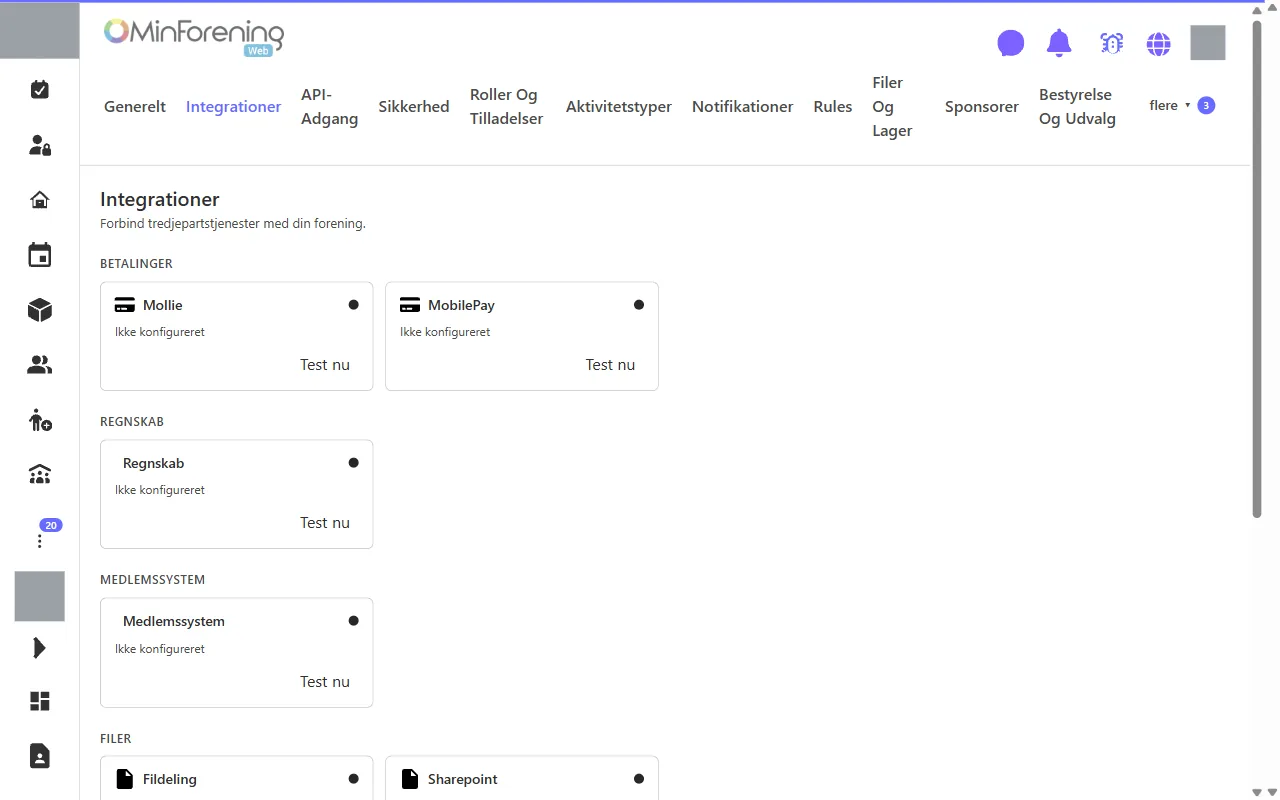
- Find the area Betalinger (Payments). Here you see MobilePay and Mollie.
- Click the solution that you want to set up.
Set up MobilePay
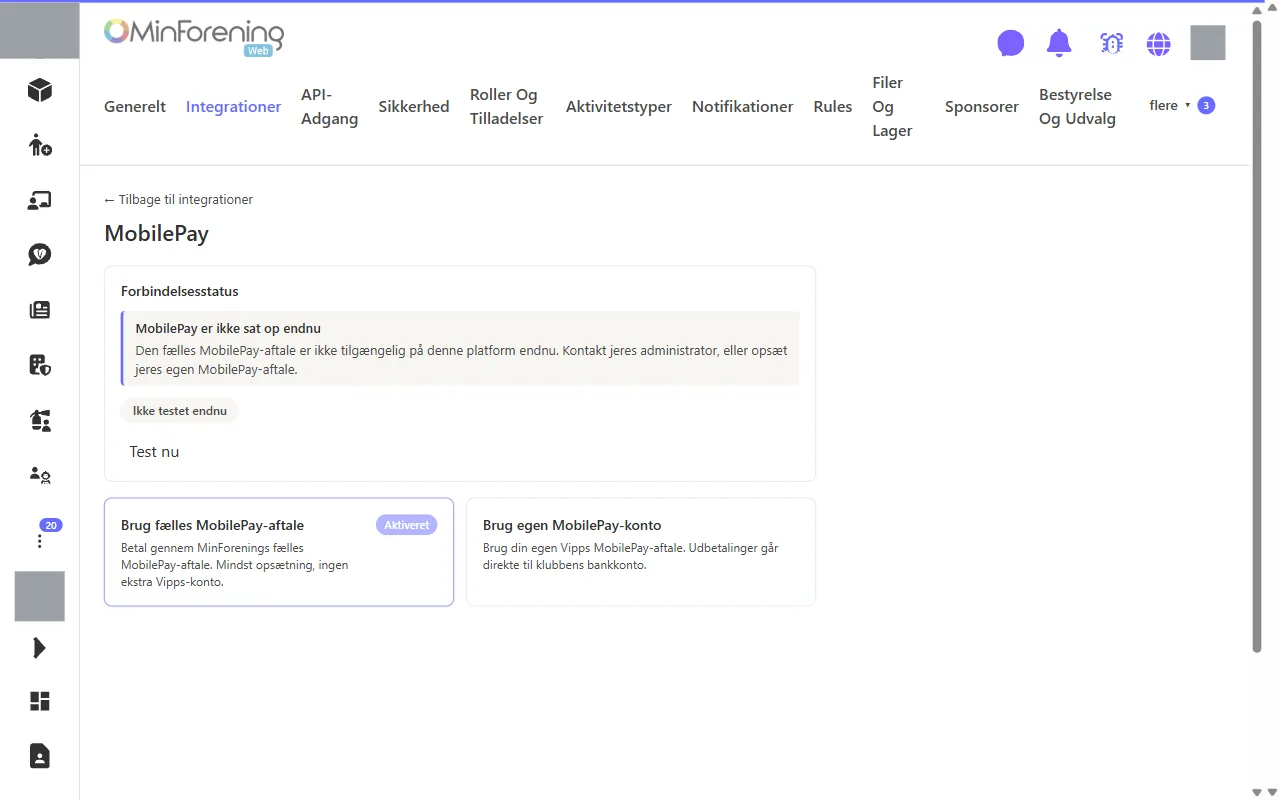
The page shows Forbindelsesstatus (Connection status). Here you see if MobilePay is already set up.
You can use MobilePay in two ways:
- Brug fælles MobilePay-aftale (Use the shared MobilePay agreement): Members pay through our shared agreement. This needs the least setup.
- Brug egen MobilePay-konto (Use your own MobilePay account): You use your own Vipps MobilePay agreement.
With your own account, the money goes directly to the bank account of your club.
Not all clubs can select the shared agreement. If you cannot select it, the page tells you.
To use your own account, do these steps:
- Select Brug egen MobilePay-konto (Use your own MobilePay account).
- Write your information under Handelsoplysninger (Merchant information). This is your merchant number and your keys from MobilePay.
- Click Gem (Save).
- Click Test nu (Test now) to make sure that the connection works.
Set up Mollie
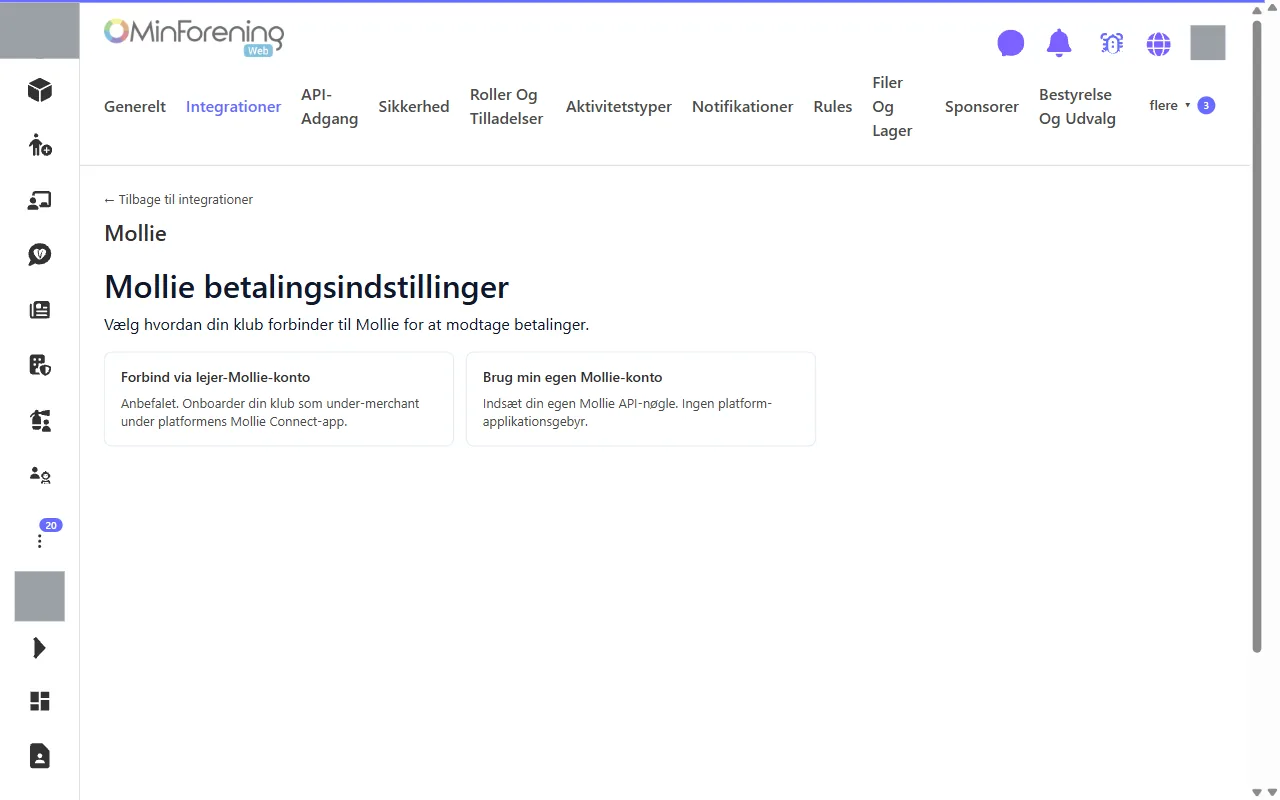
The page has the name Mollie betalingsindstillinger (Mollie payment settings). Here you select how your club connects to Mollie.
- Forbind via lejer-Mollie-konto (Connect through the platform’s Mollie account): We register your club with Mollie. This is the recommended choice.
- Brug min egen Mollie-konto (Use my own Mollie account): You enter a key from your own Mollie account.
To use your own Mollie account, you must first click Køb opsætning (Buy setup).
Do the steps on the page. When the connection works, you see Mollie forbundet (Mollie connected).
Under Aktiverede betalingsmetoder (Enabled payment methods), you see how members can pay. Click Test forbindelse (Test connection) to make sure that the connection works.
Next step
Now your club can receive payments. In the next guide, you charge membership fees and create subscriptions.
Last updated: