
This guide is for persons who want to create a club in the web app. First, you create a user for yourself. Then you create the club. Then you log in.
When you create the club, you become an administrator of the club.
The pictures show the Danish version of the web app. The text gives the Danish label first, then the English meaning in brackets.
Before you start
Have this information ready:
- Your name, your email address and your postal code.
- The name and the postal code of your club.
- The type of your club.
- The logo of your club, if you want to use it. You can also add it later.
Create your user and your club
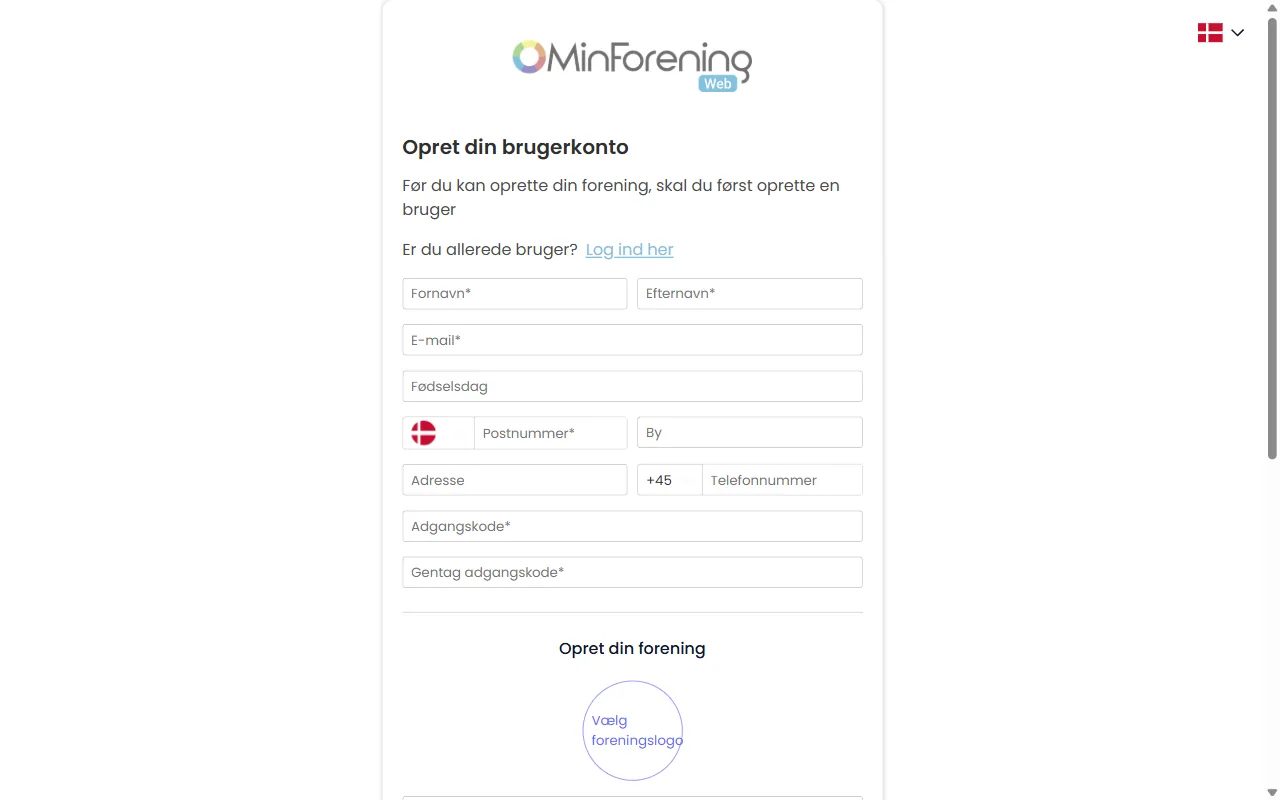
You do all of this on one page. The page has the name Opret ny forening (Create new club). You find it via the Opret forening (Create club) button at the top of minforening.dk.
- Under Opret din brugerkonto (Create your user account), write at least your name, email, country and postal code.
- Write a password.
- Write the password again in Gentag adgangskode (Repeat password).
- Under Opret din forening (Create your club), write at least Navn på forening (Club name) and Postnummer (Postal code).
- Select the Foreningstype (Club type).
- Select the check box to agree to the processing of personal data.
- Select the other check boxes that the page shows.
- Click Opret (Create).
Do you already have a user? Then click Log ind her (Log in here) at the top of the page. After you log in, you fill in only the information about the club.
Wait while we create the club
After you click Opret (Create), you see the text Vi opretter din forening (We create your club). This usually takes some minutes. You can stay on the page.
When you see Din forening er klar (Your club is ready), click Log ind (Log in).
Do you see Vi kunne ikke fuldføre oprettelsen (We could not complete the creation)? Then click Prøv igen (Try again). If this does not help, speak to our support team.
Log in
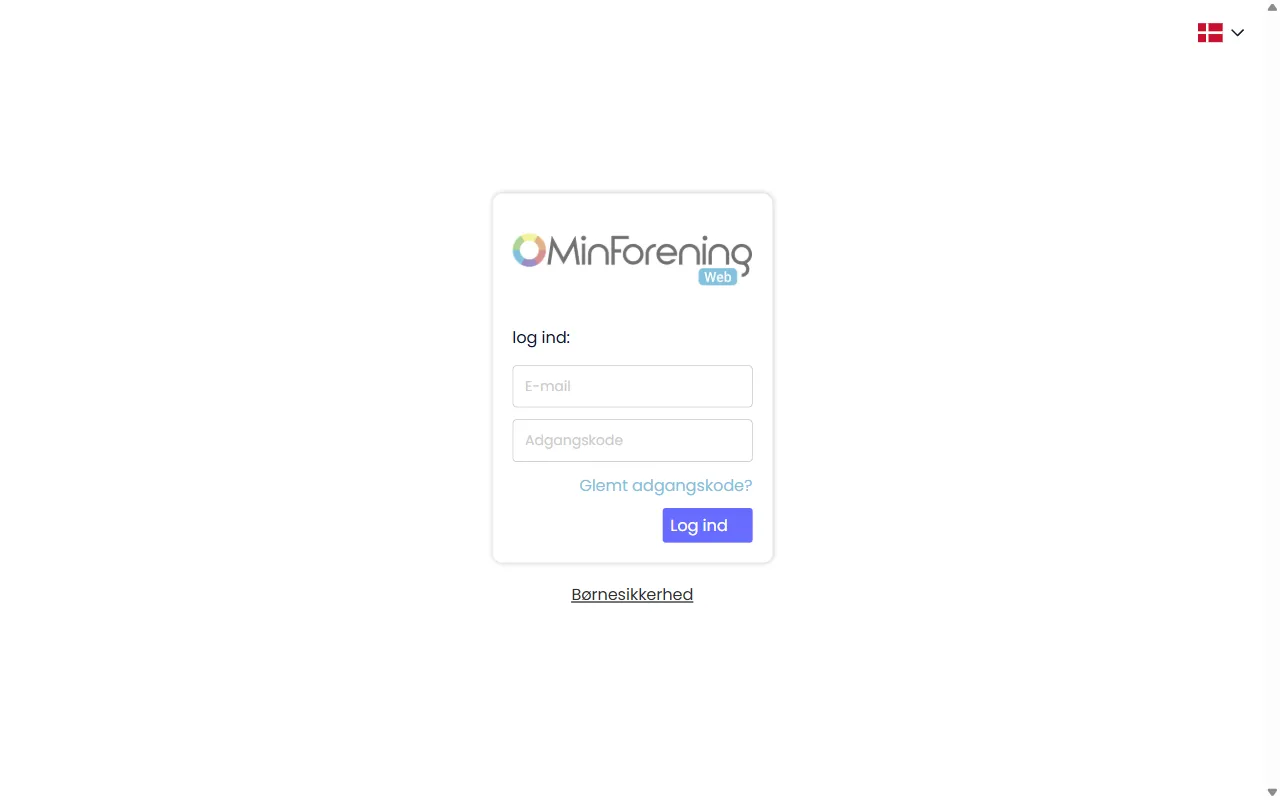
- Go to the login page.
- Write your email address and your password.
- Click the button Log ind (Log in).
Did you forget your password? Then click Glemt adgangskode? (Forgot password?) on the same page.
You can possibly also log in in a different way, for example with Log ind med e-mailkode (Log in with email code).
Next step
Now you have a club, and you are in the web app. The next guide gives you a tour of the start page and the menu.
Last updated: