
This guide is for club administrators. It tells you how to change the information about your club in Indstillinger (Settings). It also tells you how to turn modules on and off, and how to buy new modules.
The pictures show the Danish version of the web app. The text gives the Danish label first, then the English meaning in brackets.
Change the basic data of your club
- Click Indstillinger (Settings) in the menu on the left.
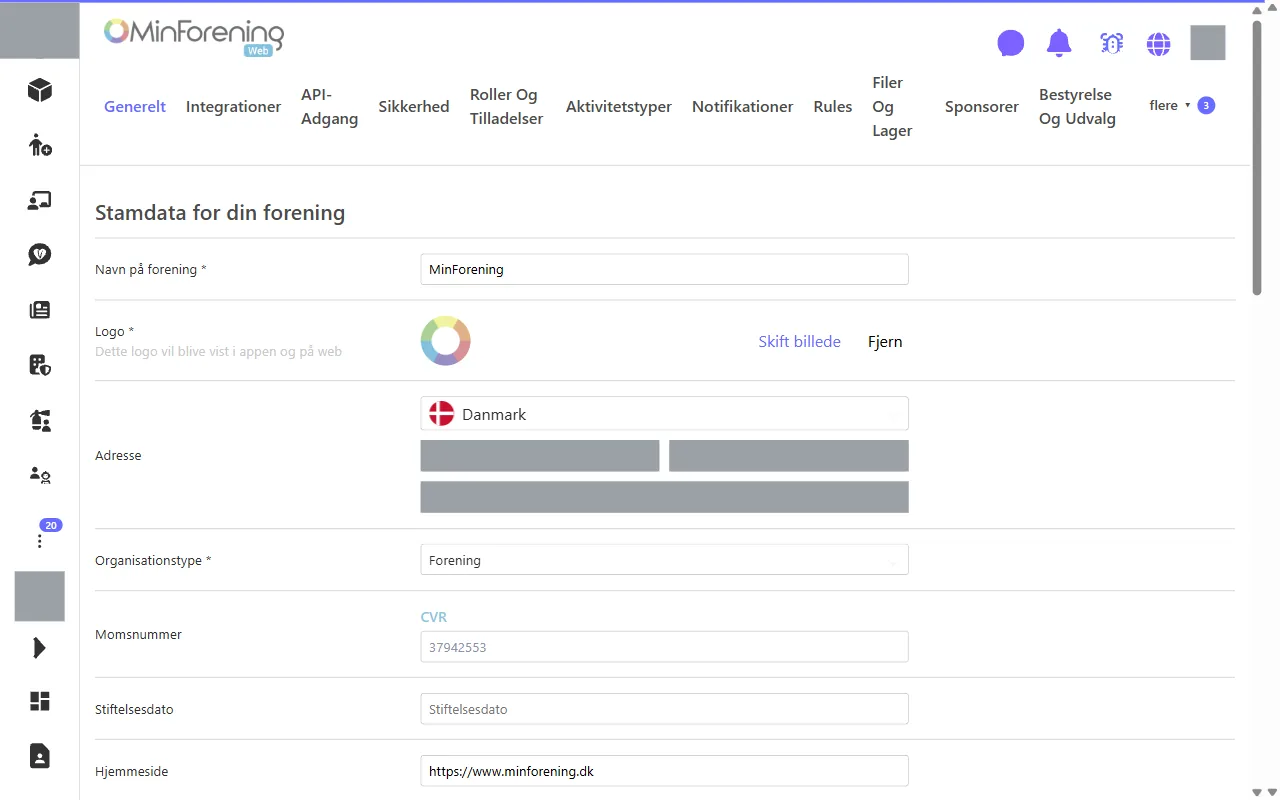
- Select the tab Generelt (General). You see Stamdata for din forening (Basic data for your club).
- Change the fields.
- Click Gem (Save).
Did you make an error before you saved? Then click Nulstil (Reset).
These are the most important fields:
- Navn på forening (Association name), Logo and Organisationstype (Organisation type) must always have a value.
- Logo shows in the app and on the web. To select a new logo, click Skift billede (Change picture).
- Adresse (Address), Postnummer (Postal code) and By (Town) are the address of the club.
- Organisationstype (Organisation type), Momsnummer (VAT number) and Stiftelsesdato (Founding date) give information about the club.
- Hjemmeside (Homepage) and Datapolitik (Data policy) are links to your website and your data policy.
- Promover din forening (Present your association) is a short presentation of the club.
- Information (General information) is general information about the club for the members.
Select a default role for new members
At the bottom of the tab Generelt (General), you can click Avanceret (Advanced). Below Standardrolle for nye medlemmer (Default role for new members), select the role that new members get automatically. For more information about roles, read the guide about roles and permissions.
The other tabs in Settings
You always see the tab Generelt (General). You see the other tabs only if your club has the module. These are some of them:
- Integrationer (Integrations) connects the club to other systems, for example for payments. Refer to the guide about payments.
- Roller og tilladelser (Roles and permissions) controls what each role can do.
- Egne felter (Custom fields) are extra fields that you make yourself.
- Notifikationer (Notifications) gives an overview of the notifications of the club.
- Filer og lager (Files and storage) shows how much space the files of the club use.
- Menutilpasning (Menu customisation) shows, hides and moves items in the menu for all persons in the club.
- Moduler (Modules) turns the modules of the club on and off.
Turn modules on and off
We turn on the modules for the club. This applies on MinForening, MinOrganisation and white label. You control the modules that you bought in Modulshop (Module shop) yourselves. In a white label solution, you often have more control, and there is not always a module shop. We agree on this based on your needs.
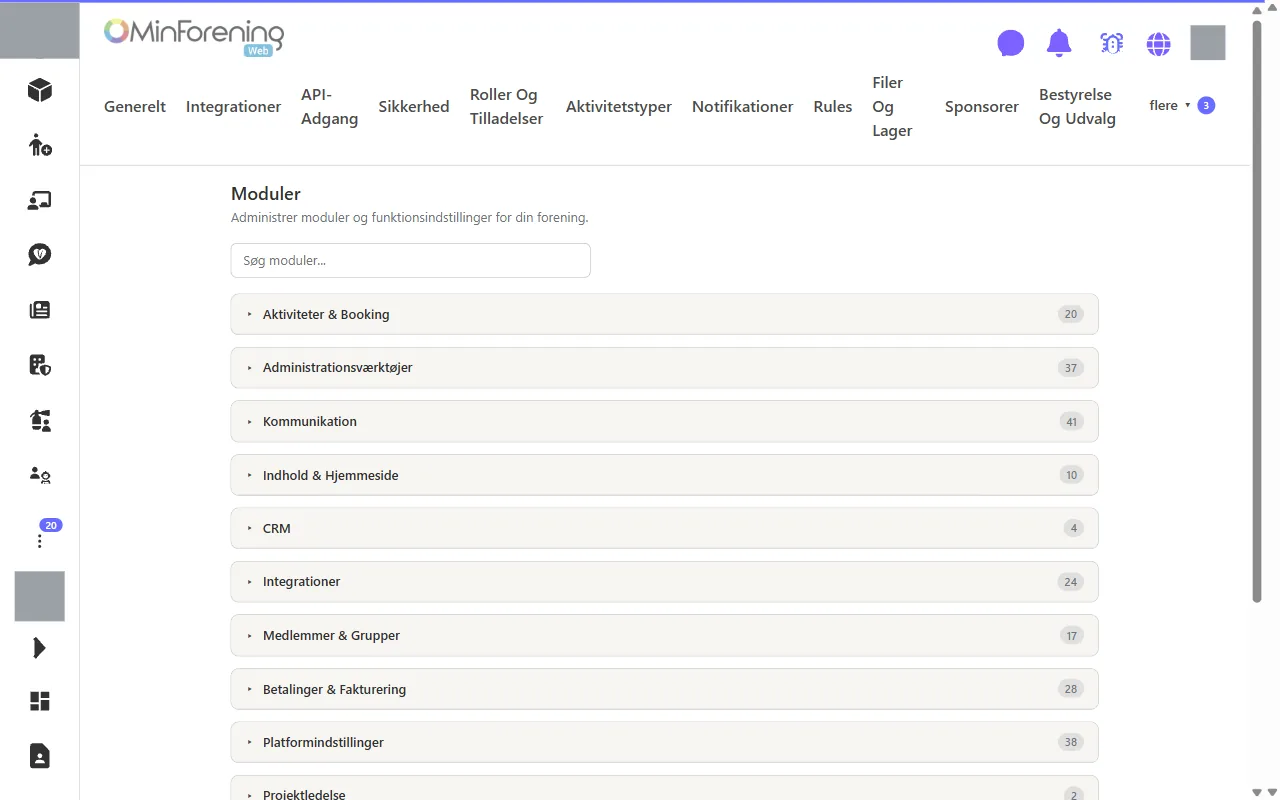
The tab Moduler (Modules) shows the modules that the club has. This is available if your club has the module Modulshop (Module shop).
- Click Indstillinger (Settings) in the menu on the left.
- Select the tab Moduler (Modules).
- To see the modules in an area, click the area. Or use the field Søg moduler… (Search modules…).
- Use the switch next to a module that you bought to turn it on or off.
You cannot turn some modules on or off yourself. Then the switch does not work.
Buy new modules in the module shop
Modulshop (Module shop) shows the modules that you can buy. This is available if your club has the module Modulshop (Module shop). Modules in the module shop cost money. To buy, you must be logged in as an administrator of the club. When you buy, you fill in the invoice details with the CVR or VAT number of the club and an email address for the invoice.
- Click Modulshop (Module shop) in the menu on the left.
- Select the tab Moduler (Modules). To find a module, use the field Søg (Search).
- If the module has a video, you can click the icon Vis eksempel (Show preview) to see it.
- Click Tilføj modul (Add module). A window shows what the module can do and the price.
- Examine the price below Prisoversigt (Price breakdown).
- Click Køb modul (Purchase module). The next page is the payment.
At the top of Modulshop (Module shop), you see Antal brugere (Number of users) and Modulpris (Module price). The price is for each month, plus VAT.
The tab between Moduler (Modules) and Fakturaer (Invoices) shows help that you can buy, for example to set up payments. On the tab Fakturaer (Invoices), you see your invoices.
Next step
Now you know the settings of your club. In the next guide, you learn about files and documents.
Last updated: